


Home / Newsletters / August 2026
Change is in the air! A lot is happening for MTECH as we celebrate another new campus in Heber, start a new school year, and recognize an important transition as we prepare for the retirement of our incredible President Clay Christensen.
The new campus is wrapping up construction and programs are getting classrooms and labs ready for students. We’d like to welcome the new faculty, staff, and students that will call this new campus home! The Office of Teaching and Learning team is dedicated to supporting faculty through Canvas resources and professional development opportunities. We are always happy to meet with any instructors that have any questions or want a little extra help.
Need help before the semester starts?
OTL is here to help! If you’re stuck on a Canvas issue, want someone to look over your course, or would like help using a Canvas tool, contact the OTL Helpdesk at OTLHelpdesk@mtec.edu.
Important Canvas Prep!
As you work on getting your classrooms and materials ready for new students, remember to take some time and make sure your digital classroom is ready as well. Online content is constantly being updated and those updates can cause links in Canvas to break or images to disappear. Make sure you review your course using the checklist below and work with OTL to resolve any questions or issues you find.
Course Settings
- Click on Settings in the course navigation and make sure your Start and End dates are set correctly.
- On the same Settings page, find and click on “Validate Links in Content” on the right side. This tool will check for the following:
- Broken Links
- External links go to pages outside of the Canvas course. This can include links to MTEC.edu. If these are broken, you will need to find the updated page link and update the Canvas content.
- Internal links link to either files or other pages that are part of your Canvas course. If these are broken, the link might be trying to pull up a resource from an old Canvas course and will need to be updated. It is also possible the file or page needs to be published for the link to work if you are using the Student View to check.
- Missing Images
- Missing YouTube Videos
- Broken Links
- Click the “Navigation” tab at the top of the Settings page. Drag any unnecessary items to the bottom section to hide them from Student view.
Course Content
- Click on the CourseDog Syllabus link in course navigation and select your course from the drop down. If you do not see your course listed, please reach out to your program lead/coordinator.
- Verify that your course is correctly set up for Lockdown Browser or HonorLock if you use either.
- Review all content and clarify any questions with your department or with OTL
- Use Student View to review the course from a student’s perspective. Keep in mind that Student View only displays published content. Before students are added, review your unpublished content carefully and make sure anything intended for the first day is published.
- Add Students
- If using emails, make sure the “Login” option is selected.
- Publish Course
- Modules and individual items like pages and assignments
- Check Files to make sure uploaded images are also published
Review this list as well as other important Canvas items on the OTL Website or in the new Canvas Basics Course. If you have questions about more advanced Canvas tools, please reach out to OTL Helpdesk or Danny Young to request additional training.

OTL Team
Please join us in welcoming Alicia Pulido, our newest part-time Instructional Designer! Alicia joined the OTL team at the end of July and will be working with faculty and programs to support course design, Canvas, and instructional development. Come by our office in Lehi Bldg B room 203 and say HI!
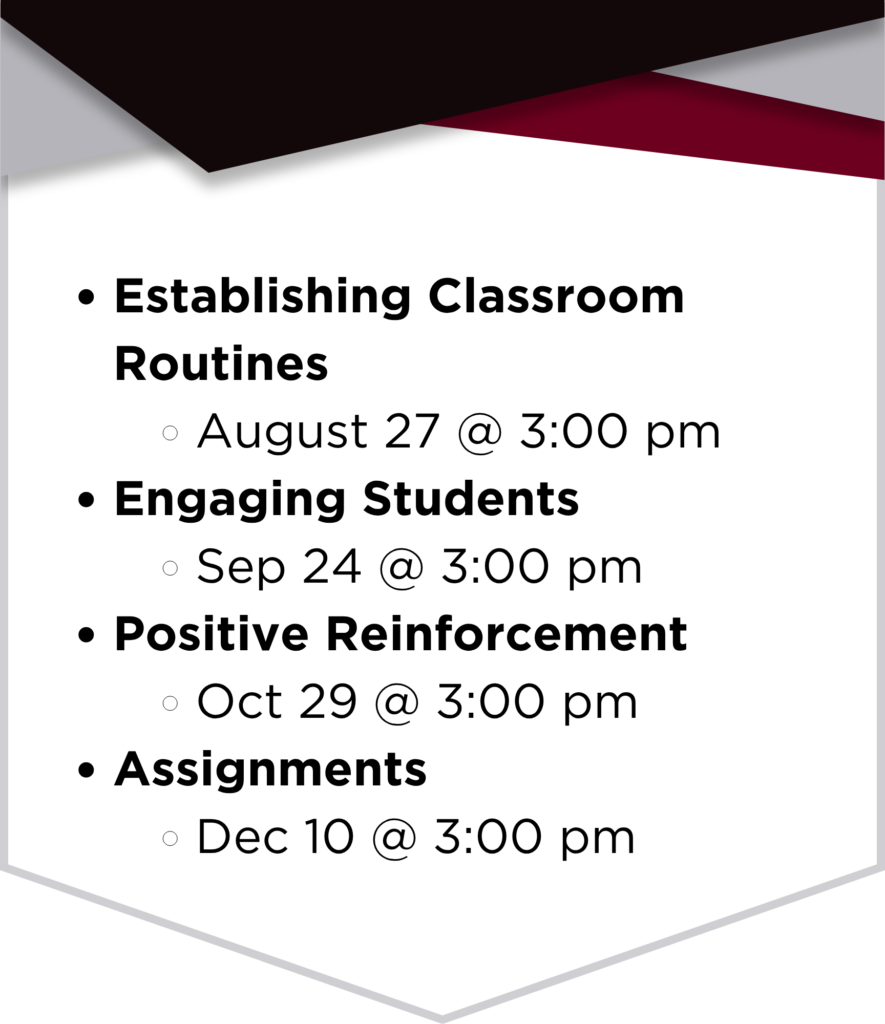
Upcoming OTL Webinars
Mark your calendars and watch for the invite from Brent for these upcoming webinars.
The previous webinar showcased faculty ideas and strategies used in their classroom. You can find ongoing discussions and other resources in the Canvas Professional Learning Community or you can reach out to Brent Gregson directly for more information.