
Home / Newsletters / 2025 / September 2025
Accessibility
Over the Summer the Office of Teaching and Learning introduced new tools meant to help improve accessibility in Canvas courses. This effort is part of MTECH’s pursuit of quality learning while complying with accessibility requirements. We have been working on additional training and resource materials and hope to work with you more in days to come to make sure we meet the April 2026 deadline for accessibility.
Next Steps: UDOIT
UDOIT is another tool created by CidiLabs that focuses specifically on accessibility compliance. This tool scans your course and creates a list of inaccessible items that need to be addressed, and provides tools and directions for how to fix them.
While we recommend you work through organizing and cleaning up any extra files first, you can begin the next step as soon as you feel ready. To help get you started with UDOIT we will walk through a few of the main screens here. Additional resources and tutorials are already available on the OTL website.
UDOIT: Starting a Scan
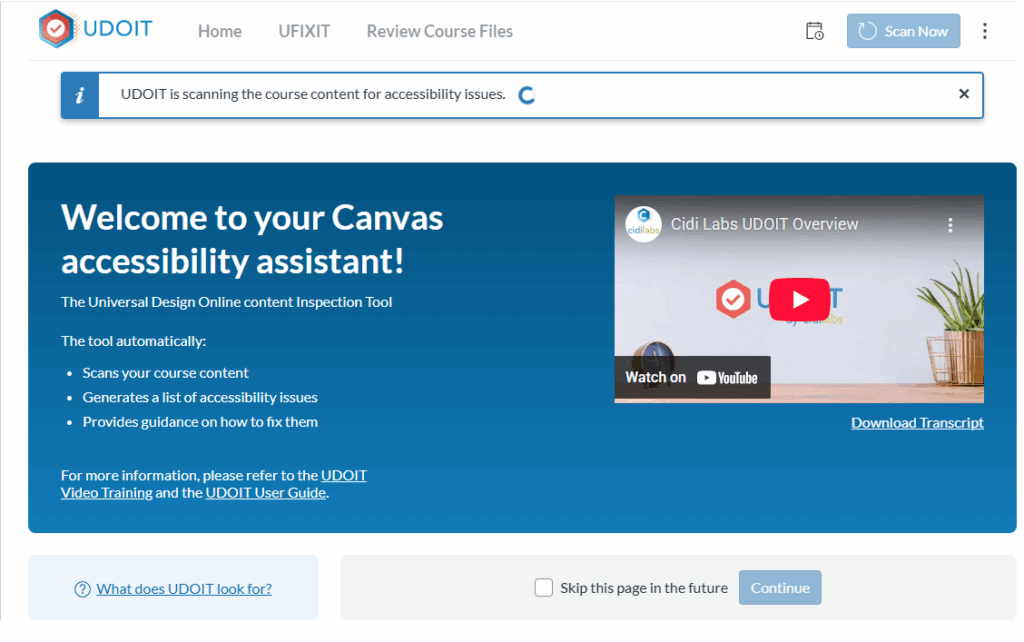
You’ll find a link for UDOIT in the left-hand course navigation in Canvas. Once you click on the link, and authorize UDOIT in your course if necessary, you’ll see the Welcome page. If this is the first time loading UDOIT in your course, a scan will start automatically. You should a message indicating a scan is running. If no scan starts, you can begin one manually by clicking “Scan Now”, in the top right.
You can check the results of the most recent scan by clicking on the “Home” tab at the top of the page.
UDOIT: Home Page
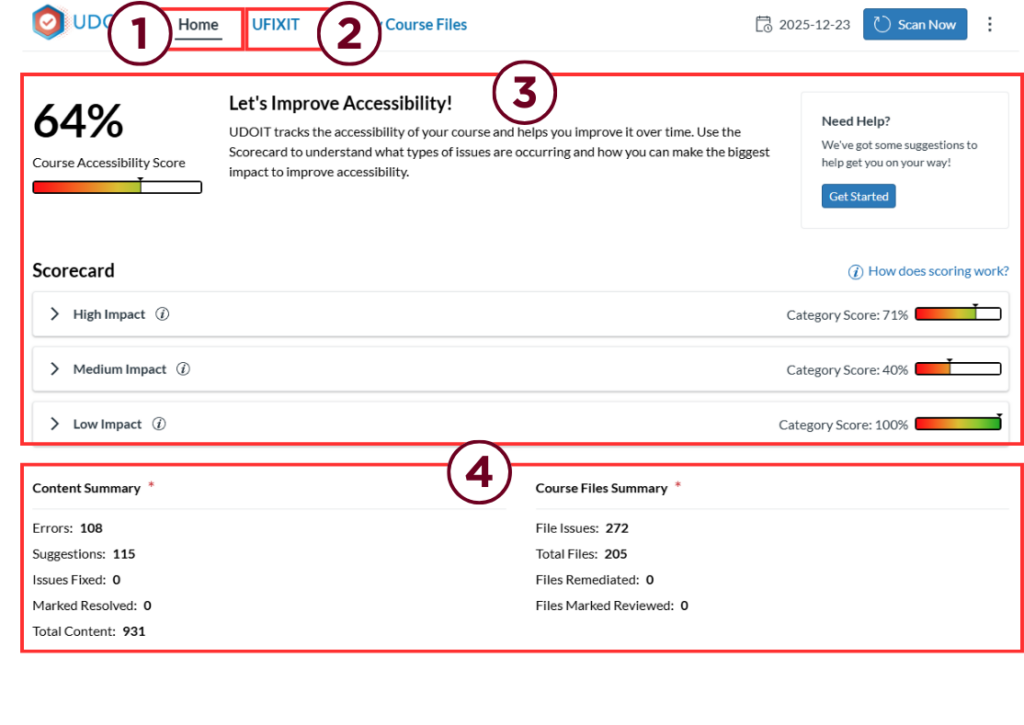
On the new UDOIT Home page, or the course scorecard (1), you can see a summary of the scan results.
Here (3) you can see an overall percentage score which indicates how much of your course content and how many of your course files meet accessibility standards. The scorecard will also break down the overall percentage into High Impact, Medium Impact, and Low Impact. Clicking on each category will reveal the content types in each category and clicking on a content type will take you tot he UFIXIT page (2) where you can see a list of issues of that type.
In the bottom section (4) you can review a summary of the total number of content and course files. These summaries include information about how many errors need to be addressed as well as a running tally of those you have already addressed.
If you click directly on the UFIXIT (2) tab you’ll open a new page that lists every issue in your course. This list can be extensive and may span several pages. You can navigate through pages at the bottom, or increase the number of items listed per page.
If you clicked on a specific item in the scorecard (3) the UFIXIT page will still open, but it will automatically apply filters so only issues of that type are listed.
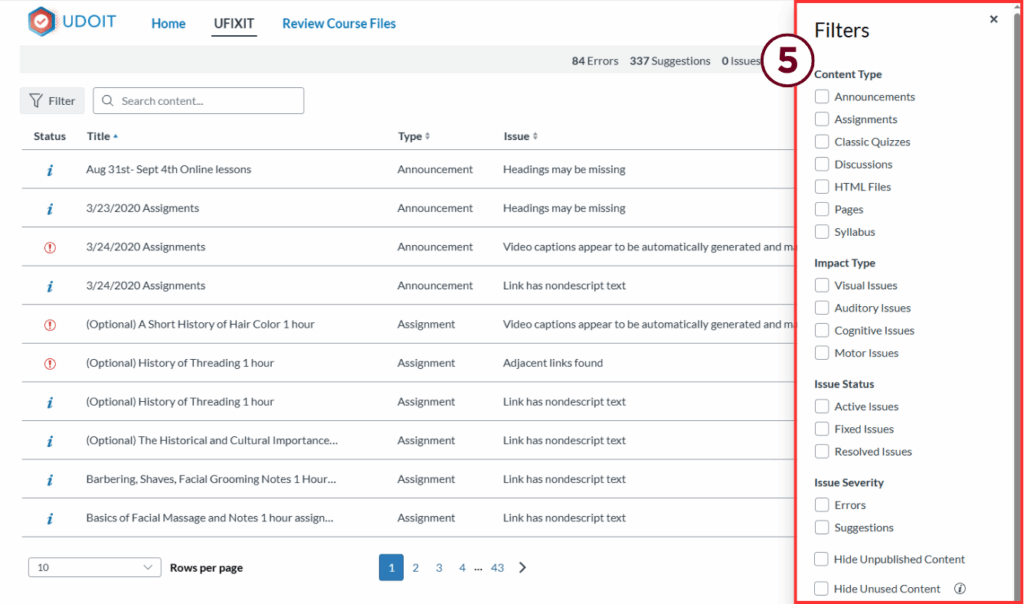
Clicking on the “Filter” button will open a separate window to the right (5) with multiple filter options. If you want to filter by the issue type items like alt text, color, headings, links and other items can be found at the bottom of the filter list in a drop-down selection box.
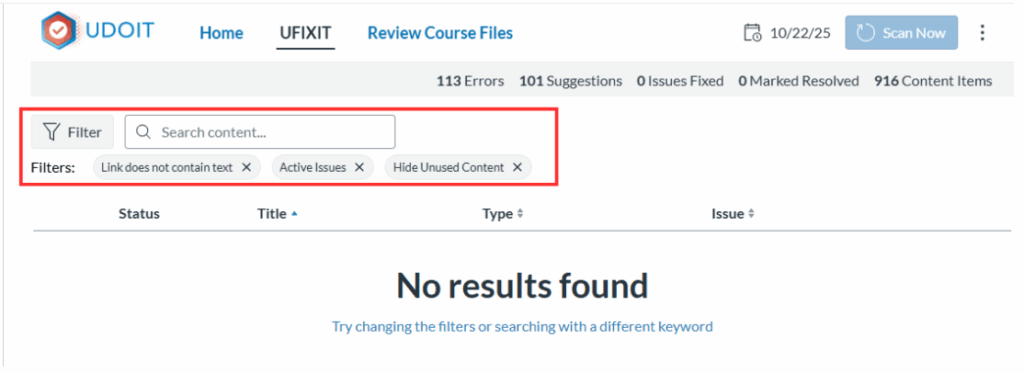
Remember to pay attention to the filters on the UFIXIT page, as adding too many will likely result in a blank page. These filters can easily be cleared by clicking the small “x” next to each one.
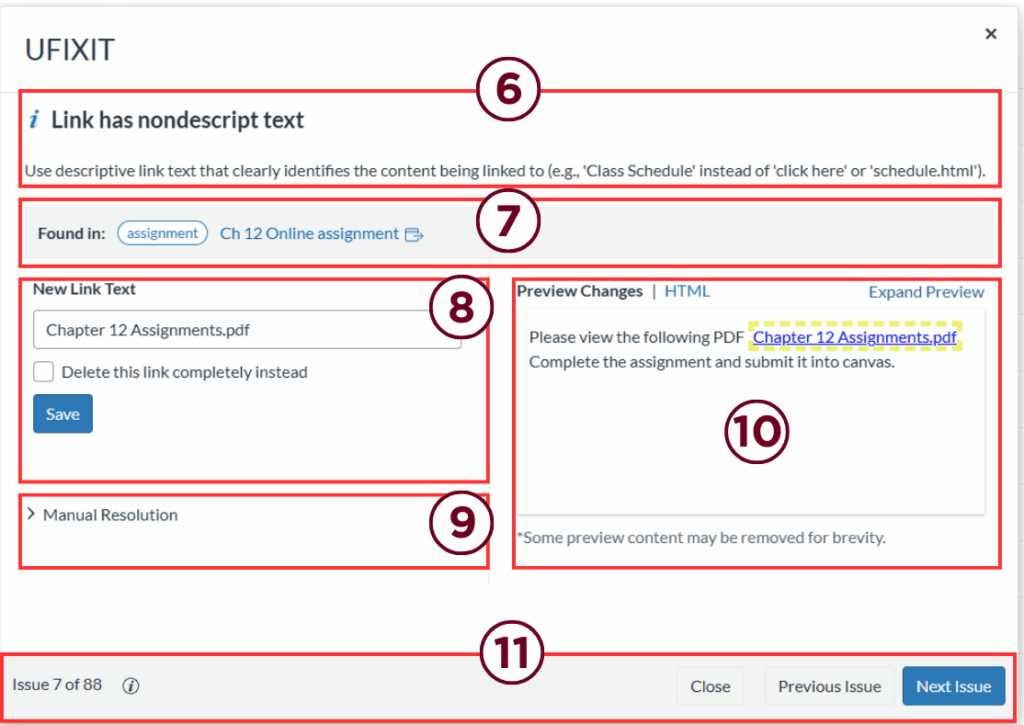
Once you click on one of the issues in the list on the UFIXIT page, a new window will pop up. You can correct most of the simple issues directly from within this window.
At the top (6) you’ll find information about the issue. Below that (7) you’ll see where the issue was found and a link that will take you there. On the left (8 & 9) you have two possible actions. First (8), for some issues you can make a direct change that resolves the issue. For more complex issues you may only see suggestions here that require more work. Second (9), you have the option to manually resolve the issue. Basically, this just tells UDOIT to ignore it without fixing it. Please DO NOT use this option. OTL can help you correct difficult issues, and it is better to address them rather than ignore them.
On the right (10) you can see a preview of the issue that can help you understand what has been flagged. And on the bottom (11) you can see the number of issues as well as buttons that will allow you to click to the next or previous issue without closing the window.
Main Issues
OTL has identified a wide variety of issues that we are working on. Some of them are more complex than others. However, so far it seems that many of the issues identified by UDOIT are ones that should be relatively simple to resolve. These include:
- Image alt text missing or matching the image file name,
- Missing headings or page organization,
- Links that are not descriptive, and
- Color or contrast issues.
Clean Up Reminder
When we first introduced our new accessibility tools, we also discussed general accessibility principles as well as some simple tips for better organization. Some of the most common items that raises accessibility concerns are images. However, images can also be difficult to keep track of if you have a lot of them in your course.
Running TidyUP as well as implementing a clear folder structure and/or a file naming convention can help keep files/images organized. To make things easier on yourself review these “Best Practice” tips and remember to reach out to OTL with any questions.
Best Practices
- Organize your course files with a clear naming convention, in clearly named folders, i.e.,
- create a folder in your course files for each module (Module 1, Week 1, Chapter 1),
- name each file following this convention – module name_quiz number or name_file description,
- adjust file names as needed according to your course structure,
- add files to the correct module folder.
- Download backup copies of your course files before deleting any files. Or request a full course copy from OTL.
- Remember, deleted files can not be recovered.
- Find and remove duplicates of files.
- Run TidyUP and remove unused course elements before working in UDOIT.